
Zdjęcie za duże? Wypróbuj nasz darmowy internetowy narzędzie do zmiany rozmiaru zdjęć
A photo is ready to send, but the file is too large. Our new free online image resizer lets you change its dimensions or set a maximum file size directly in your browser. Your selected photos stay on your device.
We built it for the small jobs that interrupt your day: preparing an email attachment, reducing a photo for a form, or making a few pictures fit your website. Open the tool, choose your photos and download the results. You can also try the built-in sample before choosing your own files.
The tool is free to use and processes up to five photos at a time. You can use it without creating an account.
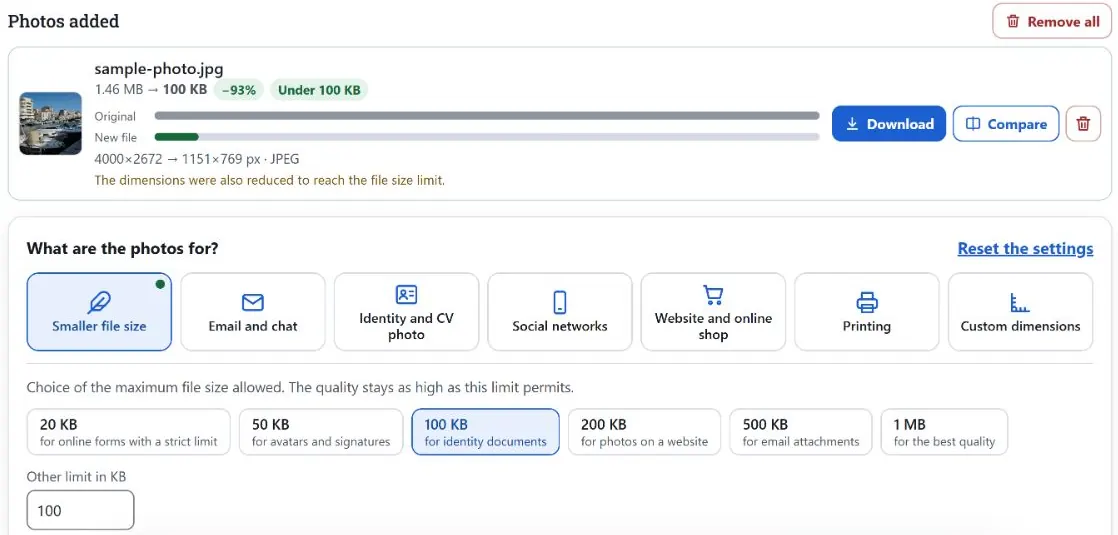
Choose what your photos need to fit
A smaller file
Choose a 20, 50, 100, 200 or 500 KB preset, or enter your own limit. The tool adjusts compression and can reduce dimensions when needed. Check the final file against the receiving site’s requirements.
The right dimensions
Set a width and height in pixels, keep the photo’s proportions, or crop to fit a chosen shape. Presets help prepare social posts, website images and common document-photo dimensions.
A useful format
Export JPEG, PNG or WebP where supported by your browser. Add several photos and download the results together as a ZIP. Image files are processed locally.
Check the result before you download
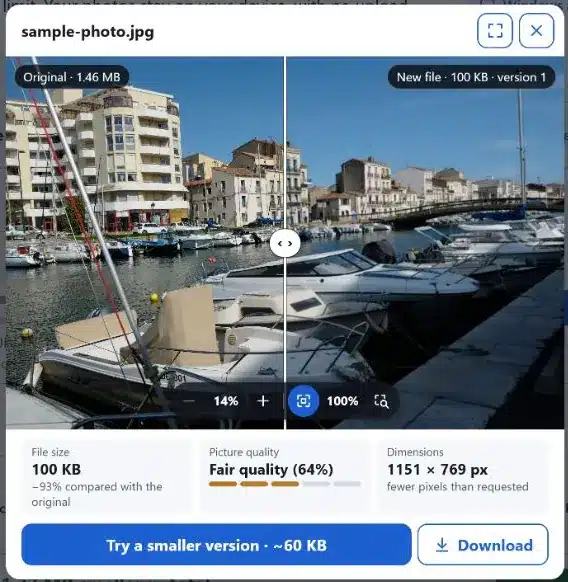
The result card shows the original size, the new size and the pixel dimensions. Open Porównaj to move the before-and-after slider and inspect details with zoom. You can try further compression and return to the previous result.
In the example shown here, a 4000 × 2672 pixel photo becomes 1151 × 769 pixels with the 100 KB setting. Results depend on the picture and the settings. JPEG compression can change fine detail, so keep your original and check the preview.
A file-size setting is an upper limit, rather than a promise of an exact byte count. The tool uses 1024 bytes per KB. If a form applies a strict decimal limit, choose a slightly lower target and verify the downloaded file. For identity photos, check the authority’s format, dimensions and photo requirements as well.
Your photos stay on your device
Your browser reads and processes the selected image files. They are not uploaded to ObviousIdea or another image-processing server. The exported images are rebuilt from pixels, so EXIF information such as GPS location is not copied. Embedded colour profiles are not preserved either.
JPEG, PNG, WebP, GIF, BMP and PDF pages can be opened. HEIC support depends on the browser; Safari can read it natively, while other browsers may require conversion first. Once the page and the required assets have been cached, the tool can work offline. The sample photo and PDF conversion must be loaded online before their first offline use.
For whole folders, use Light Image Resizer for Windows
The online tool is a convenient starting point for a few photos. Light Image Resizer for Windows takes over when you work with complete folders or repeat the same preparation regularly.
- Resize folders and subfolders in a batch.
- Save your settings as profiles for the next job.
- Resize from the Windows right-click menu.
- Add watermarks, rename files and prepare your photo collection.
A free Windows version is available. Visit the product page for the Free and Pro options.