
NeoDigalo TTS — Free Text to Speech for Windows
NeoDigalo TTS · Free Windows app
Hear your draft. Find what to improve.
Listen to emails, articles and notes with voices already installed on your Windows PC. Paste your text, press Play and review it at your own pace.

Free Windows app. Download and installation through Microsoft Store.
Start with compatible Windows voices. No external voice account or API key is needed to begin.
More ways to use NeoDigalo
Review something you have written, listen to a document or create an audio version to keep.
Check your writing
Listen to an email, an article or a draft before you share it. Hear a repeated word or an awkward sentence, then make your changes in the original document.
Listen to your documents
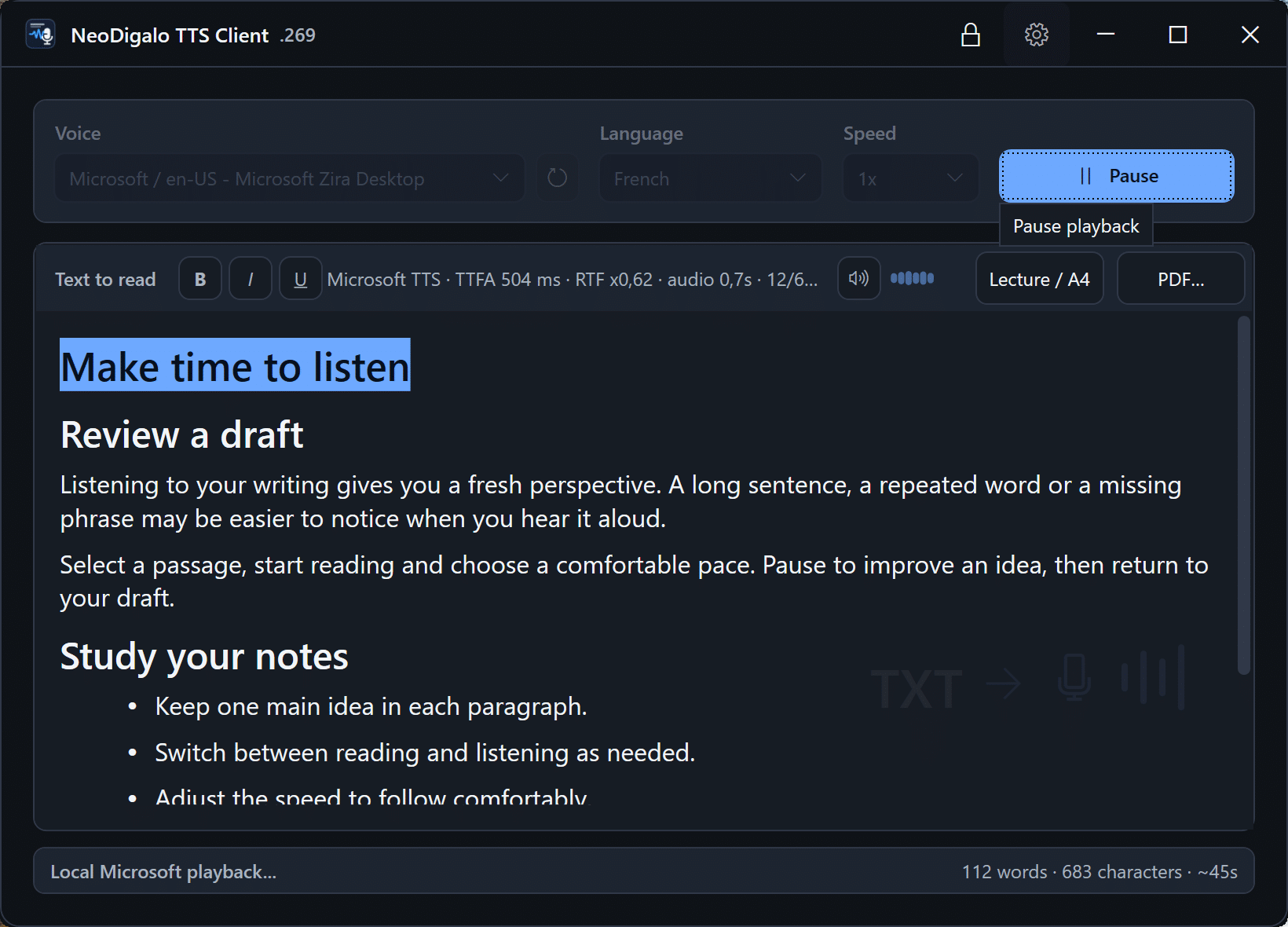
Work through notes, a Markdown file or a page of PDF text. Read a selected passage aloud and follow the highlighting in the main text area.
Keep an audio copy
Create an MP3 to play again later. This experimental export needs a compatible speech server or OpenRouter; installed Windows voices do not support MP3 export.
Start listening in three steps
1. Add your text
Paste your text or open a Markdown file. To review only part of it, select that passage.
2. Listen and follow
Choose a compatible Windows voice and press Play. Adjust the speed, pause whenever you like and follow the highlighted text in the main text area.
3. Return to your draft
When you hear something you want to change, pause and edit your original document. Then paste or reopen the updated text in NeoDigalo and listen again.
Start with voices on your PC
NeoDigalo TTS is free. Compatible voices installed in Windows can work offline. Available voices and languages depend on what is installed on your PC.
Want more voice options? Connect a compatible NeoDigalo server or use your own OpenRouter key. These options are configured separately. PDF text is extracted on your computer; text read with a remote voice engine is sent to that service. Provider fees may apply.
Listen to text from another app
Copy a passage from your writing app and paste it into NeoDigalo. You can use this with any app that lets you copy text.
Prefer a shortcut? Clipboard reading is off by default. Enable it in settings, select a passage in your app and hold Ctrl+C for two seconds. NeoDigalo reads the copied passage with your selected voice engine.
The Microsoft Store edition does not include Word or LibreOffice add-ins. In LibreOffice Writer, use copy and paste or the optional clipboard shortcut.
Read Markdown files and PDF text aloud
Markdown drafts
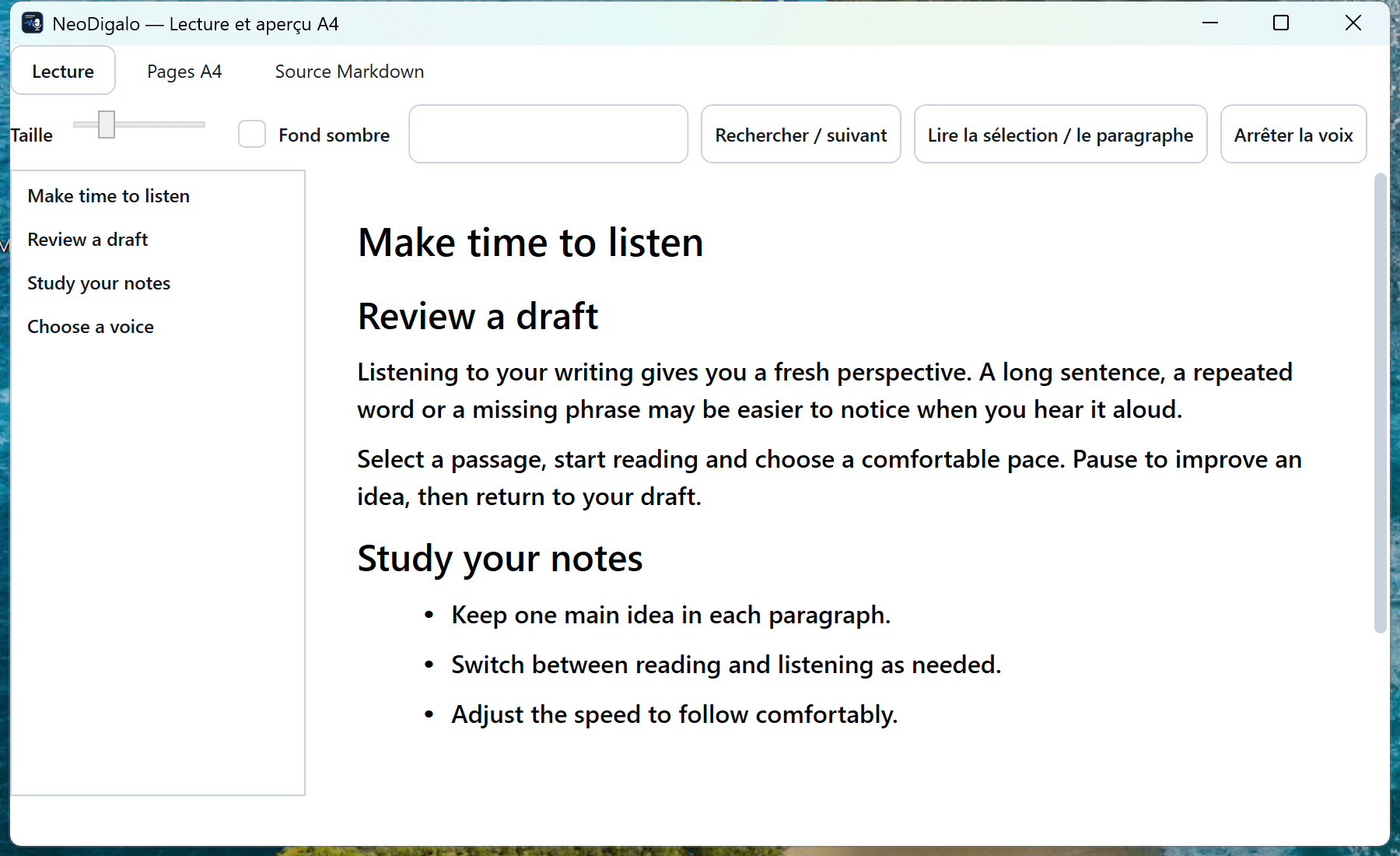
Open .md and .markdown files with their formatting. Adjust the text size and use the table of contents and search to find your place. You can also preview A4 pages and print the text loaded in the editor.
Text from a PDF
Browse the extracted text one page at a time and choose a passage to hear. Your PDF must contain extractable text. The reader shows text rather than the original page layout; scanned pages that need OCR are not supported.
Help, FAQs and community support
Find practical answers in the NeoDigalo TTS support forum, in English and French. Read about installed Windows voices, document reading and the requirements of optional speech services.
What to know before you install
PDF limits: Columns and tables may affect reading order. Password-protected PDFs and continuous reading across pages are not supported. Check extracted text before listening.
Interface: The document reading and PDF windows are currently in French.
Reading highlights: Karaoke highlighting follows playback in the main text area. Timing depends on the selected voice engine.
Ready to hear your own text?
Download NeoDigalo TTS for free from Microsoft Store and start with voices already installed on your PC. Microsoft Store handles installation and updates. Requires a 64-bit PC with Windows 10 version 2004 or later, or Windows 11.
Free Windows app. Download and installation through Microsoft Store.
Third-party licenses and notices are included with the Store app. Open Settings → About to read the included privacy policy. For help, contact our support team.
Optional voice engines and services
Direct connections
Start with voices installed in Windows or connect a speech server you configure. The Windows app does not include a local AI server or AI models.
| Connection | Voice engines and requirements |
|---|---|
| Windows voices | Compatible voices installed on your PC. No OpenRouter account is needed. These voices can work offline. |
| NeoDigalo TTS for Mac | Qwen3 TTS and experimental Phonon multilingual through a compatible NeoDigalo Mac server. The Mac app and models are provided separately. |
| Local Voxtral | Voxtral through a separately configured local speech server. This direct connection does not use OpenRouter credits. The server and models are not included in the Windows app. |
Qwen and Phonon with NeoDigalo TTS for Mac
Connect the Windows client to NeoDigalo TTS on a Mac with an Apple M1 chip or later. Qwen3 TTS and Phonon run on the Mac, which must stay on and be reachable on your network. Models and voices depend on your server configuration.
Phonon: experimental engine. It uses Ollama and a separately installed multilingual model on the Mac. The Windows client plays generated audio clips and highlights blocks of text. Phonon does not provide word-by-word timing, voice cloning or style instructions through this connection.
Phonon requires a recent Windows client and a compatible Mac server.
The Phonon 40M multilingual model is licensed under CC BY-NC 4.0 for noncommercial use. Check the model terms before choosing it for your work.
Get NeoDigalo TTS for Mac on the Apple App Store. Requires macOS 15 or later and an Apple M1 chip or later. The Mac app is available separately. The server and AI models are not included in the Windows app.
Voice services through OpenRouter
Use your own OpenRouter API key to access its voice catalogue. NeoDigalo discovers speech models that publish a supported voice list. The catalogue and available voices can change. Your provider filters also affect which models appear.
| Provider via OpenRouter | TTS model names |
|---|---|
| Microsoft | MAI-Voice-2.1-Flash; MAI-Voice-2.1; MAI-Voice-2-Flash; MAI-Voice-2 |
| xAI | Grok Voice TTS 1.0 |
| Gemini 3.8 Flash Lite TTS; Gemini 3.8 Flash TTS; Gemini 3.1 Flash TTS Preview | |
| ElevenLabs | Eleven v4; Eleven v4 Turbo; Eleven v3; Eleven v3 Conversational; Eleven Flash v2.5; Eleven Turbo v2; Eleven Multilingual v2; Eleven Turbo v2.5; Eleven Flash v2 |
| Mistral | Voxtral TTS 3; Voxtral Mini TTS |
| hexgrad | Kokoro 82M |
| Qwen | Qwen-Audio-3.0-TTS Flash; Qwen-Audio-3.0-TTS Plus |
| Deepgram | Flux TTS; Aura-2 |
| HeyGen | HeyGen Voice Turbo; HeyGen Voice Turbo (free); HeyGen Voice |
| MiniMax | Speech 2.8 HD; Speech 2.8 Turbo |
Canopy Labs Orpheus 3B and Sesame CSM 1B are also listed when these providers are enabled in settings and available from OpenRouter. Canopy Labs, Sesame and Zyphra are hidden by default. Models without a supported voice list are not included in this catalogue.
External voice services may require an account, credits or a subscription billed separately by their provider. No cloud speech credits are included. The text to be read is sent to the service you choose. Languages, audio formats, text highlighting during playback and other features vary by engine. The model and voice terms also apply.