
Search Screenshots Faster with AQS in Light Image Resizer
If you take a lot of screenshots with our new Light Image Editor, finding the right one later can become a real problem. File names are often generic. Folders grow quickly. Important visual information is locked inside the image.
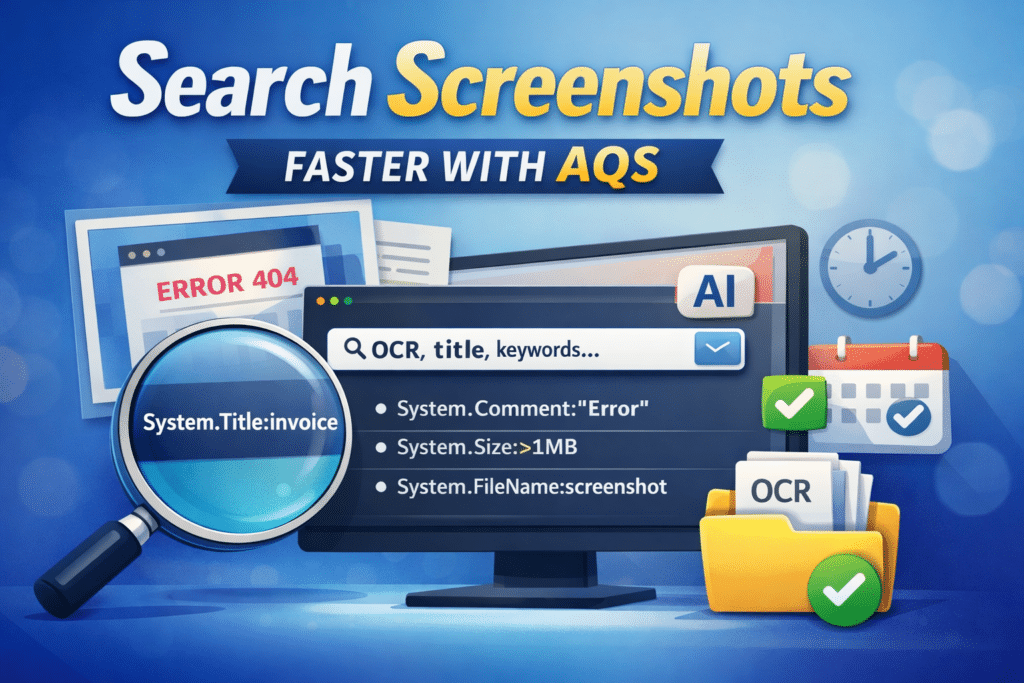
That is exactly why support for AQS search matters.
With Light Image Resizer and Light Image Editor, screenshots or any images can now fit much better into the Windows Search workflow. You can search using standard file properties such as file name, date, size, and image resolution. You can also search text-based metadata fields such as title, comment, and keywords. This becomes especially useful when your screenshots have OCR text, generated descriptions, or manually edited metadata.
If you already use Windows Search in File Explorer, AQS can help you narrow results very quickly. If you are new to it, AQS stands for Advanced Query Syntax. It is the search syntax used by Windows Search to filter files by metadata, dates, numeric values, and text fields.
Why this matters for screenshots
Screenshots often contain useful information, but that information is hard to retrieve later unless it is indexed somewhere searchable.
Depending on your workflow, a screenshot can become searchable through several paths:
- The file name
- The title metadata field
- The comment metadata field
- Keywords or tags
- OCR text stored in metadata or side files
- Standard Windows properties such as date, size, width, and height
This means you are no longer limited to browsing folders manually. You can search for screenshots using content-related terms and combine them with filters such as date or resolution.
Examples of useful AQS searches for screenshots
Here are some practical examples you can type directly into Windows Search.
Before looking at the samples below, please note that AQS syntax can often be simplified for single words. For example, System.FileName:backup is a valid query and is easier to type than System.FileName:="backup". However, the simplified form is not always as strict as an explicit equality test. When no operator is specified, Windows Search applies an implicit text operator for string properties, which usually behaves like a word-based match rather than a full exact-string comparison. In other words, the short form is convenient for everyday searches, while the explicit form with = and quotes is safer when you want an exact value, especially for names containing spaces or special characters.
Search by title
If a screenshot has a title written into metadata, you can search it with:
System.Title:"invoice"or
System.Title:"error message"Search by comment
If your screenshot metadata contains comments:
System.Comment:"OpenRouter"or
System.Comment:"login failed"Search by keywords
If tags or keywords were added:
System.Keywords:"server"or
System.Keywords:"customer support"Search by file name
System.FileName:~="screenshot"or
System.FileName:~="capture"System.FileName:backup is the simple form. It searches for the word in a flexible way.
System.FileName:="backup" is the exact form. It looks for the exact value backup.
System.FileName:~="backup" is the contains form. It finds file names that contain backup anywhere.Search by date
System.DateModified:todaySystem.DateModified:"this week"System.DateModified:2026-03-25System.DateModified:>=2026-03-01Search by file size
System.Size:>500KBSystem.Size:<5MBSearch by screenshot resolution
System.Image.HorizontalSize:1920 AND System.Image.VerticalSize:1080That is useful when you want to find only full HD screenshots, or separate laptop captures from 4K desktop captures.
Combining filters with AND, OR and NOT
This is where AQS becomes really powerful.
You can combine text search with metadata filters to get much more precise results.
Examples with AND
System.Title:"invoice" AND System.DateModified:"this month"System.Comment:"OCR" AND System.Size:>1MBSystem.FileName:~="screenshot" AND System.Image.HorizontalSize:1920Examples with OR
System.Title:"warning" OR System.Comment:"warning"System.Keywords:"invoice" OR System.Keywords:"receipt"Examples with NOT
System.FileName:~="screenshot" NOT System.Comment:"duplicate"System.Title:"error" NOT System.DateModified:todayMixed examples
(System.Title:"OpenRouter" OR System.Comment:"OpenRouter") AND System.DateModified:"this week"(System.Title:"invoice" OR System.Keywords:"invoice") AND NOT System.FileName:~="backup"Title, comment and keywords are especially useful
For screenshot search, the most valuable text-based fields are usually these:
- Title
- Comment
- Keywords
These fields are useful because they can store short semantic descriptions of what the image contains.
For example, instead of searching only by file name like Screenshot_2026-03-25_104455.png, you can search by what actually matters:
- A client name
- An error message
- An app or website name
- A project keyword
- A short OCR summary
- A generated image description
This makes screenshot archives much easier to reuse for support, documentation, reporting, legal evidence, blog writing, testing, and research.
OCR plus metadata makes screenshots much easier to find
OCR already helps when text is visible inside the screenshot.
But metadata can go one step further.
Instead of relying only on raw extracted text, you can store a cleaner summary in the title or comment field. You can also add a few keywords that reflect the main subject of the screenshot. This creates better search quality and more predictable results.
For example:
- Title: “Cloudflare Access token screen”
- Comment: “Screenshot of Cloudflare Zero Trust service token settings for tunnel protection”
- Keywords: “cloudflare, zero trust, service token, security”
Later, a simple AQS query can find that image in seconds.
Why we use canonical property names in examples
In Windows Search, some labels can vary depending on the user interface language.
That is why the examples in this article use canonical property names such as System.Title, System.Comment, System.Keywords, and System.DateModified. They are clearer for technical documentation and easier to reuse in scripts, code, and advanced workflows.
A few real-world search ideas
Find a recent screenshot of a login issue
(System.Title:"login" OR System.Comment:"login failed") AND System.DateModified:"this week"Find all 4K screenshots related to Windows Search
(System.Title:"Windows Search" OR System.Comment:"Windows Search" OR System.Keywords:"Windows Search") AND System.Image.HorizontalSize:3840Find screenshots about invoices, but exclude old exports
(System.Title:"invoice" OR System.Keywords:"invoice") AND NOT System.FileName:~="export"Find screenshots captured today that mention OCR
(System.Title:"OCR" OR System.Comment:"OCR") AND System.DateModified:todayLight Image Resizer and searchable screenshot workflows
Light Image Resizer keeps evolving beyond classic resize and conversion tasks.
With screenshot capture, OCR support, metadata handling, and AI-assisted description workflows, it becomes easier to build a local screenshot archive that is not only stored, but actually searchable.
That is a big difference in daily use.
Instead of remembering where a screenshot was saved, you can search for what it contains, when it was created, how large it is, or which metadata field was filled.
If you work with support cases, technical documentation, visual notes, tutorials, software testing, or compliance evidence, this can save a lot of time.
Learn more
You can explore more about Light Image Resizer here:
Microsoft documentation about AQS and Windows Search properties is also useful if you want to go deeper:
- Using Advanced Query Syntax programmatically
- System.Title
- System.Comment
- System.Keywords
- System.Search.Contents
Video
A Youtube from our CEO in french , show how it works using cat, dog or other animals in the windows search engine :
Final thoughts
AQS search is one of those Windows features that many users overlook, even though it can be extremely practical once metadata starts working for you.
If your screenshots include OCR text, titles, comments, or keywords, Windows Search becomes much more useful. And when Light Image Resizer helps you write that information into searchable fields, your screenshot collection becomes easier to manage over time.
Search less. Find faster. Keep your screenshots useful.
this feature is available in Light Image Resizer 7.6.1 minimum
Download Light Image Resizer 7.6.1 or more recent
Full Change log for Light Image Resizer 7.6.1