
Convert HEIC to JPG in Bulk on Windows
Convert a folder of iPhone HEIC photos to JPG on your Windows PC with Light Image Resizer. Select the files, choose JPEG output and a separate destination, then run the batch. You can resize the pictures in the same operation. Keep the HEIC originals so you can check the converted copies before sharing them.
Download Light Image Resizer for Windows · See the conversion steps
Before you start: HEIC support on Windows
If Light Image Resizer cannot open your HEIC files, check the Microsoft Store extensions below. Our Windows test used Light Image Resizer 7.6.8.183 with both extensions already installed. We did not test that setup with either extension removed.
The Store shows current availability and any price for your region. Check whether the extensions are already installed before purchasing anything. Other HEIC applications may use their own decoder; these checks describe the Windows setup used for this guide.
How to convert HEIC to JPG in bulk on Windows
How to convert HEIC to JPG in bulk
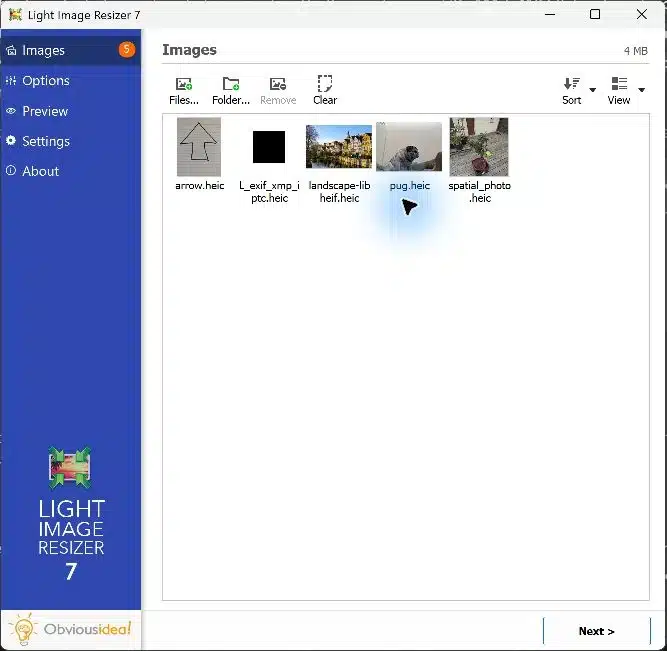
- Add your HEIC files. Open Light Image Resizer and use Files or Folder to select the photos you want to convert.
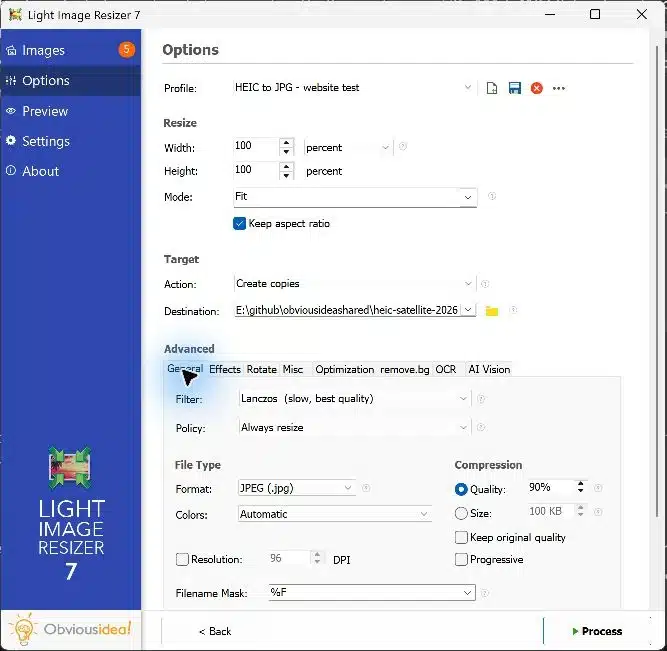
- Choose JPEG output. In Options, set the output format to JPG. Our test used quality 90.
- Create copies in a separate folder. Keep the HEIC originals and choose a destination for the JPG files. Do not select an overwrite action if you want to retain the source files.
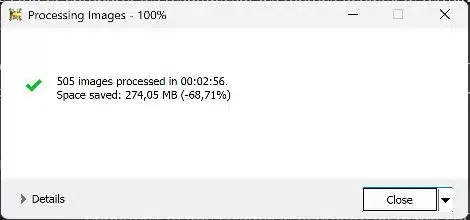
- Start the conversion. Check the result summary, then open a few JPG files to review their appearance and orientation.
Resize while converting
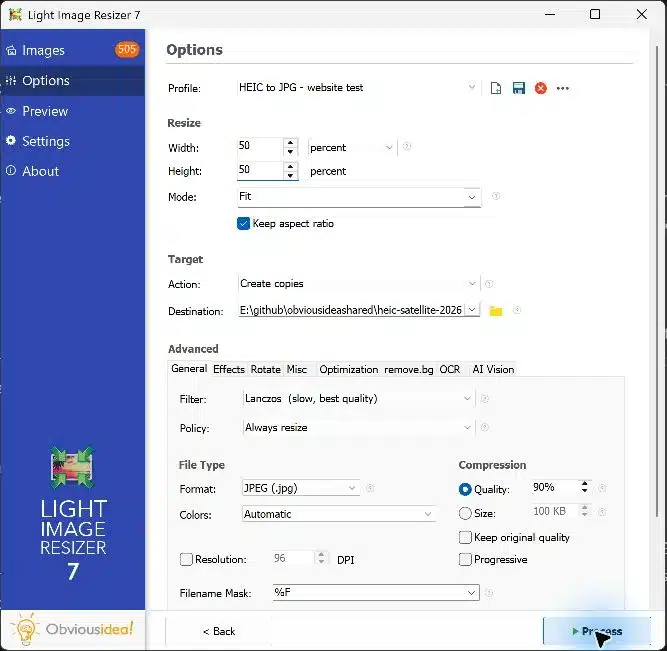
You do not need a second conversion to make the JPG pictures smaller. Set the dimensions in the same profile. For example, the test below used 50% of the original width and height. Choose dimensions for your intended use, then inspect a sample before processing an important folder.
What we tested with 505 HEIC files
Light Image Resizer 7.6.8.183 converted 505 HEIC files to JPG in one run. The test folder contained 101 copies of each of five different sample images, not 505 different photographs. Output used JPEG quality 90 and a 50% resize. The application reported 2 minutes 56 seconds. This is one observed run, not a speed guarantee or a controlled benchmark.
Check dates and orientation before sharing. The sample test revealed a missing capture date and an incorrectly rotated JPG. Keep the HEIC originals; see the metadata FAQ below.
The Windows test report records SHA-256 checks confirming that the original HEIC files were unchanged after conversion to a separate folder. This verifies that specific copy workflow; it is not a promise about overwrite settings. No maximum batch size was established by the test.
Desktop batch conversion or the online tool?
For folders of HEIC photos, this guide covers the installed Windows application. Our online image resizer accepts up to five files at a time and works with formats your browser can decode. In our Chromium test, the HEIC sample could not be opened. The tool advertises native HEIC decoding in Safari, but Safari was not tested in this check. Do not assume that the same HEIC file will work in every browser.
For the full application and supported workflows, visit the Light Image Resizer for Windows product page. For dimension settings, see how to resize a photo.
HEIC to JPG: frequently asked questions
Will converting to JPG change image quality?
JPEG conversion can introduce compression artifacts. Quality 90 was used for the batch test, not established as a visually identical match. Review fine detail and text in your output, and keep the HEIC originals if you may edit the photos later.
Are photo dates, location and orientation preserved?
Do not rely on complete metadata or orientation preservation in the tested LIR7 version. Of the five distinct samples, one lost its capture date and another produced a JPG rotated by 90 degrees. GPS preservation was not verified. Review your output and retain the original HEIC photos.
Can I convert a whole folder?
Yes. The tested workflow loaded a batch and created JPG copies in a separate destination. The 505-file result demonstrates that run; it does not establish an unlimited file count or the limits of every licence edition.
Where can I check downloads, pricing and licence limits?
Use the product page for current download options and licence information. Before starting a large batch, check the limits shown by your installed edition.
Download Light Image Resizer for Windows
Download Light Image ResizerWindows application · HEIC-to-JPG batch workflow · Keep your originals